
Creating template surveys with customizable blocks
This article explains how Survey Blocks are used to create flexible, reusable survey templates, and how researchers can add and manage block questions without editing survey code.
Survey Blocks are most useful when the structure of a survey stays the same, but the questions need to change depending on the brand, concept, or stimulus being evaluated.
What Survey Blocks are for
Survey Blocks let you define where customised questions should appear in a survey, without hard-coding the questions themselves.
As a researcher, you design a template survey that controls screening, looping, and overall flow. Blocks act as placeholders where tailored questions can be inserted later and edited visually.
This is especially helpful for brand studies, concept testing, or tracking surveys where each item needs its own follow-up questions.
How a block is added to a survey
Blocks are inserted into the survey using an statement in the survey like this:
s.insert_block("Name of the block")From a research perspective, this simply means:
“at this point in the survey, insert the questions for this block.”
The survey logic determines when the block appears (for example, once per selected brand). The block itself determines what questions are asked.
Once a block is referenced in the survey, it becomes available to configure in the dashboard.
Seeing blocks on the survey home screen
After blocks are inserted, they appear on the survey home screen under Question Blocks:
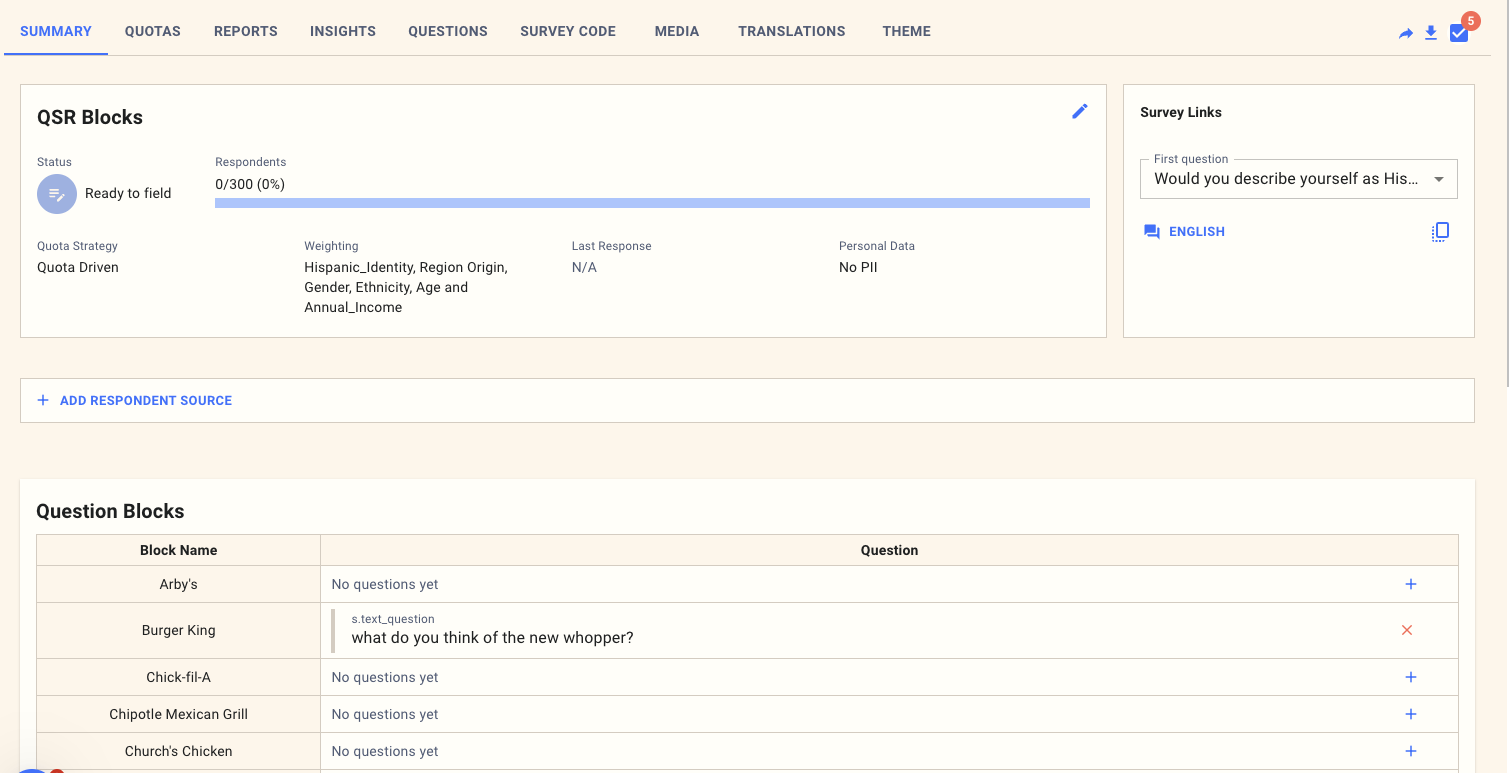
Each block is listed by name, with an overview of whether it already contains questions. This gives you immediate visibility into which brands or concepts have been configured and which still need content.
You do not need to inspect survey code to manage blocks.
Adding questions using free text
To add a question to a block, you can insert it using free text, as shown in the “Insert label” screen.
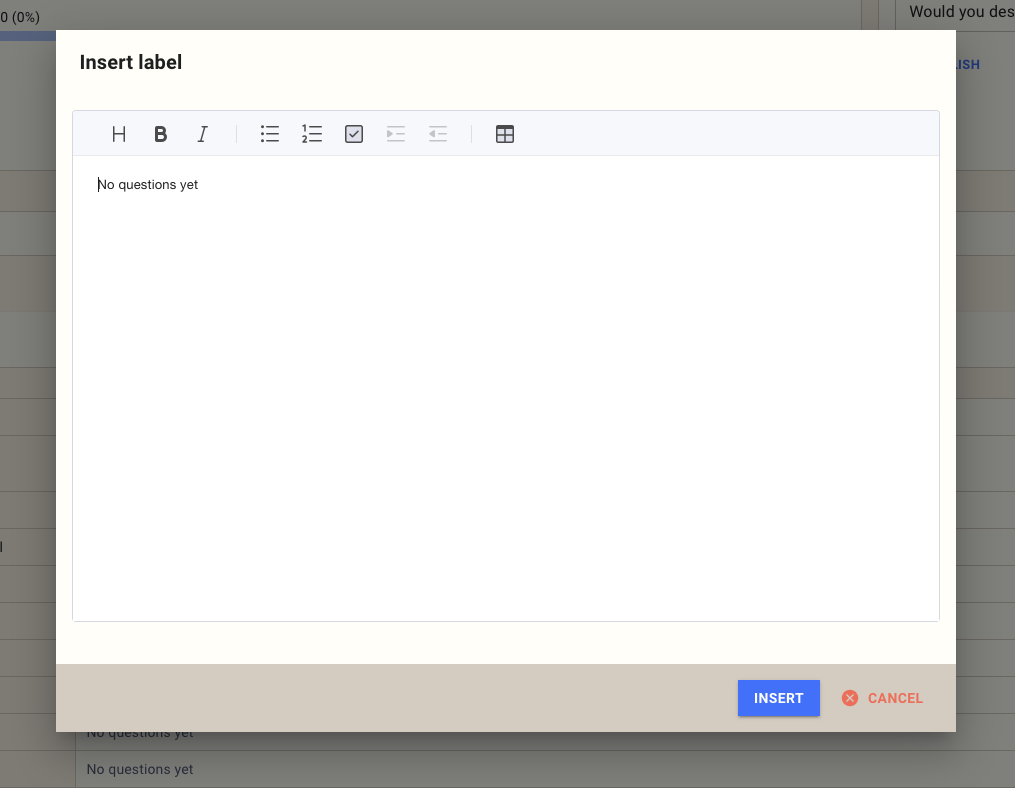
You simply type the question you want to ask, for example:
“What do you think of the new Whopper?”
The system interprets this and creates the appropriate survey step automatically. This allows researchers to work in natural language rather than choosing question types or writing configuration manually.
Editing block questions visually
Once a question has been inserted into a block, it can be edited using the visual editor shown in the “Edit survey step” screen.
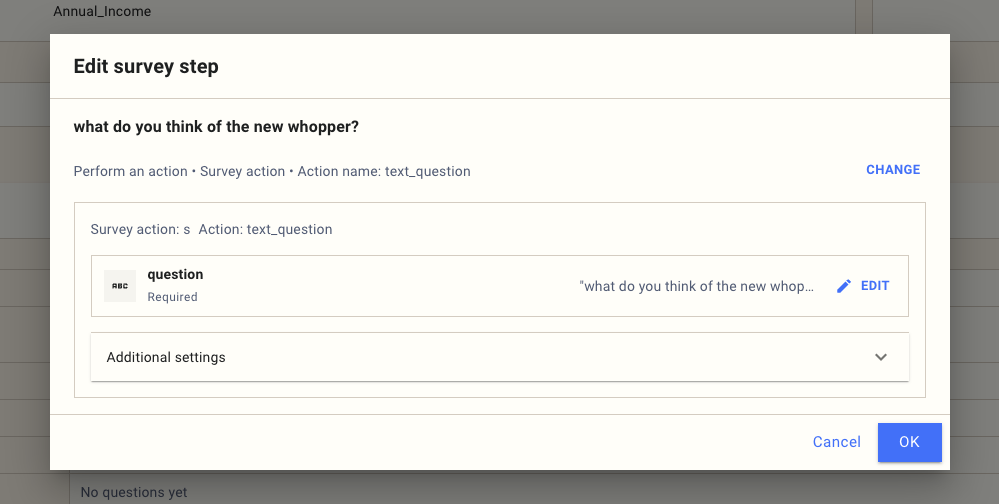
From here you can refine wording, set required fields, and adjust question settings just as you would for any other survey question.
Any edits you make apply wherever that block is used in the survey.
Using blocks to create template surveys
In a template survey, the core structure is fixed: screening, loops, quotas, and standard questions are defined once.
Survey Blocks handle the variable content. For example, after a respondent selects which brands they recognise, the survey loops over those brands and inserts the corresponding block for each one.
This means the same survey template can be reused across different brand sets or studies simply by changing the block content.
When to use Survey Blocks
Use Survey Blocks when you need customised follow-ups per brand or concept, expect wording to change late, want to reuse the same survey structure across studies, or want researchers to control question content without reprogramming.
Avoid using blocks for one-off questions that are unlikely to be reused.
Summary
Survey Blocks allow researchers to build flexible survey templates by separating survey structure from question content. You insert blocks once, manage them from the home screen, add questions using free text, and refine them with a visual editor. This makes complex, repeatable surveys easier to maintain and faster to adapt.